
WhatsApp · Android · Photos and videos
WhatsApp photos missing from Gallery? Check these before reinstalling
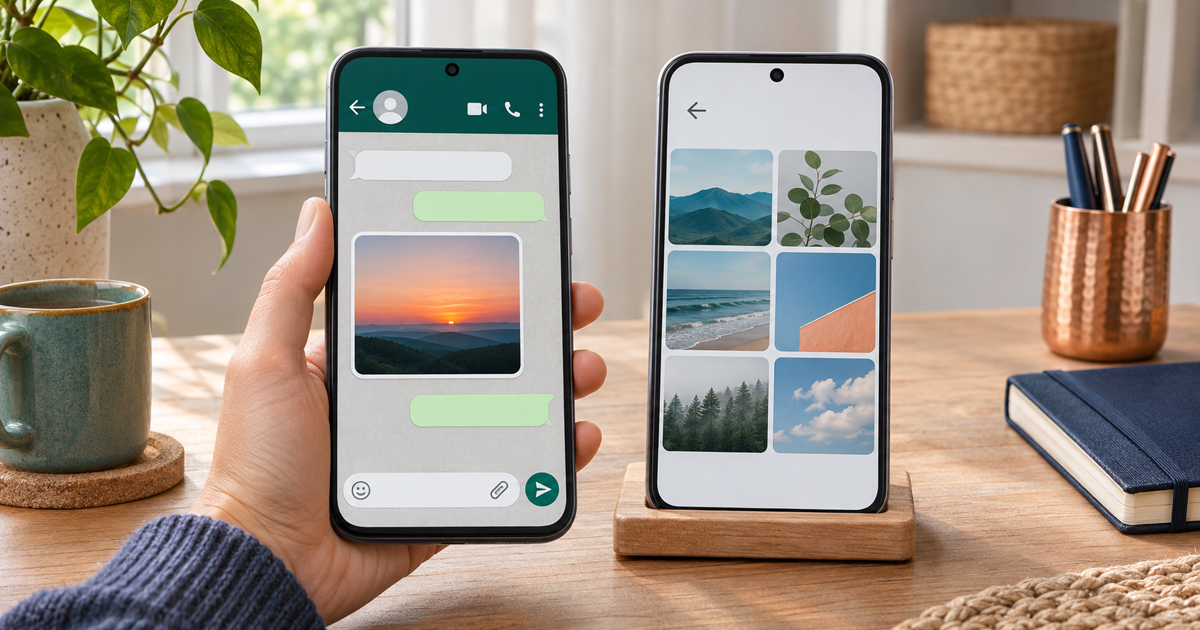
If a photo appears in a WhatsApp chat or the Files app but not in Gallery, it may not be lost: the gallery view and cloud backup are separate. First check WhatsApp’s Media visibility and that chat’s privacy setting. Do not clear app data or delete files as a test.
Updated 16 November 2026
Short answer
- Open a regular photo in the WhatsApp chat and confirm it has finished downloading. Also check whether the same file appears in Files.
- Check WhatsApp Settings → Chats → Media visibility, and if needed the Media visibility setting for that specific chat.
- Automatic saving missing in one chat may be due to its Restricted chat setting (previously Advanced chat privacy). This privacy control prevents automatic gallery saving.
- If Files can see it but Gallery cannot, check Gallery’s hidden albums. Google Photos backup for the WhatsApp folder is a separate choice.
The symptom points to the next check
First distinguish a missing file from a file shown in the wrong place. Menu labels vary by WhatsApp and phone version.
| New photos are missing from every chat | Check WhatsApp’s general Media visibility setting. Do not change backup settings until you know which app you use. |
|---|---|
| Photos are missing from one chat only | Check that chat’s Restricted chat / former Advanced chat privacy setting and its chat-specific Media visibility. |
| Files can see it, Gallery cannot | The file is present, but Gallery may not show or index the album. Check hidden albums; do not move or delete folders. |
| Gallery shows it, Google Photos does not | Google Photos device-folder backup may be off. That alone does not mean the local photo is missing. |
| It will not open even in WhatsApp | It may not have downloaded, may be view-once media or may have been removed from the device. Ask the sender to share it again if appropriate. |
Safe checking order on Android
- Open a regular, non-view-once photo in a WhatsApp chat and wait for it to finish loading. Check the same photo in WhatsApp and the phone’s Files app. Do not save duplicates repeatedly.
- In WhatsApp, open Settings → Chats → Media visibility. For one chat, open its info and look for Media visibility. This setting affects whether media is shown to gallery apps; it does not restore photos deleted earlier.
- If only one chat differs, check its Restricted chat setting. WhatsApp’s current help says media from a restricted chat cannot be saved automatically to the device gallery. Do not disable a privacy setting if it is intentional; save an individual photo manually only if the chat allows it.
- Open Gallery → Albums and check filters and hidden albums. If Files shows the file, leave it where it is. Restarting Gallery or normally restarting the phone is a safer test than clearing cache or storage.
- If you use Google Photos, check profile picture → Photos settings → Backup → Back up device folders. Backing up the WhatsApp folder is separate; enable it only if you want those chat photos copied to your Google account.
- Ask a familiar sender for one new test photo and check that same image in WhatsApp, Files and Gallery. Change one setting at a time and restore a privacy setting if the change was not intended.
What not to do
- Do not clear WhatsApp storage, uninstall the app or reset the phone just because an album is missing.
- Do not delete .nomedia files, move WhatsApp folders or empty Trash before finding the original photos and confirming a backup.
- Do not turn on Google Photos backup blindly: it may copy chat photos to the Google account you selected.
- Do not post a private chat screenshot, contact details or message contents publicly to troubleshoot.
When to stop
If an important photo will not open in WhatsApp and is absent from Files, do not uninstall the app or delete the chat. First check the WhatsApp backup date and location; if possible, ask the sender for the original again. If the file exists but Gallery alone cannot see it, tell support the phone brand, Android version, Gallery app and where you found the file. Do not send private photos.
Quick self-check
Quick self-check
Where does the latest regular WhatsApp photo appear? This choice runs in your browser; it is not sent or stored.
When is help worthwhile?
If the difference between apps remains unclear, JVS Tuki can calmly check visibility and backup settings with you. The website also has more articles and solutions, first help and a light self-check.
Sources checked
See also the guide to phone storage.