
TV turns on with the remote, but the other buttons do not work
Check the batteries or charge first, then try the TV’s own control button. A working Power button does not prove that the whole remote is working: some models use infrared for power and Bluetooth for other functions. Check model-specific pairing before buying a replacement.
Updated 24 October 2026
Safe checking order
- Compare three things: Power, the TV’s own Home menu and the physical control button on the TV. Find that button in the manual; do not move a heavy or wall-mounted TV alone. If only a set-top box or one app fails while the TV menu works, the remote itself may not be the problem.
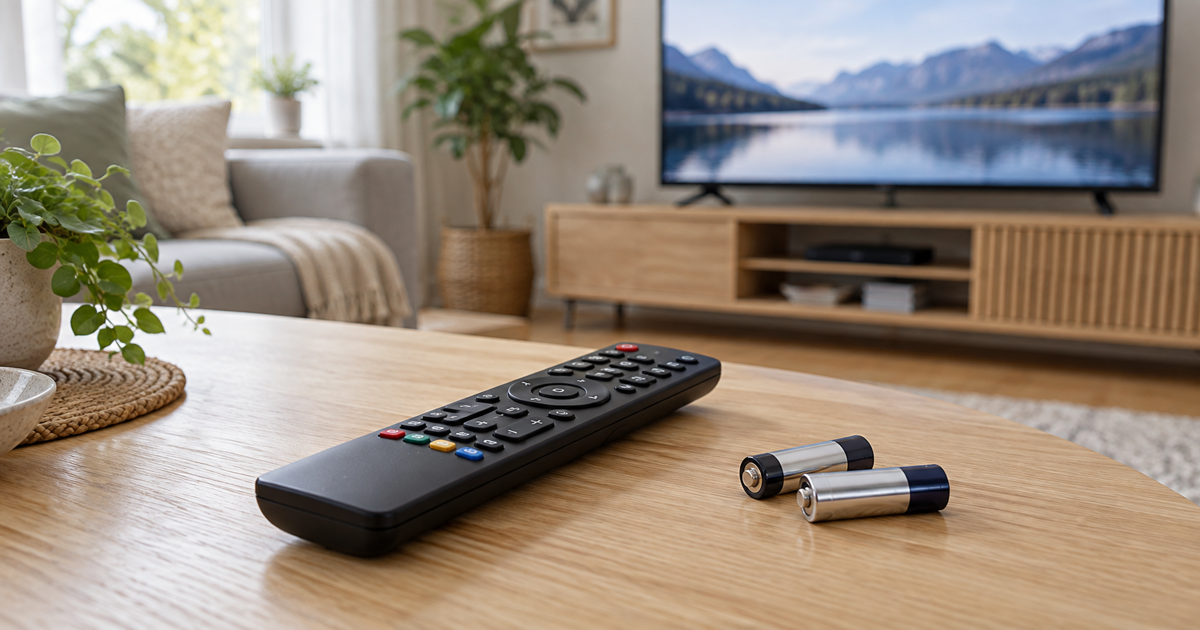
- Replace removable batteries with a fresh pair of the specified type and check polarity. Do not mix old and new batteries. Charge rechargeable remotes as instructed by the manufacturer; do not open the battery. A working indicator or Power button alone does not rule out low charge.
- Remove obstructions between the remote and TV receiver. Try nearby, pointing directly at the TV. Check that a protective cover is not holding a button down. Wipe the exterior with a soft dry cloth; do not spray cleaner into the buttons.
- Identify the exact TV and remote models. A smart remote can lose its pairing even while its infrared Power button still works. Follow the manufacturer’s instructions for that model. For example, the LG webOS 24 guide registers its Magic Remote by pointing it at the powered-on device and pressing Wheel (OK). That is not a universal instruction for every brand. Do not try random reset combinations.
- For an infrared camera test, first use another working infrared remote to confirm that your phone camera can display the signal. Point the transmitter at the camera and press Power. A visible flash shows transmission, not a working Bluetooth connection. If no flash appears, the camera’s filter may be responsible: that result alone is not a reason to buy a remote.
- If the TV’s own controls also fail, the TV may be frozen. Use the model’s normal restart procedure, not a factory reset. Do not interrupt an update by disconnecting power. Afterwards, test Power, Home and volume separately and note what changed.
Symptoms and possible causes
The JVS Tuki comparison separates four situations: only Power works → check charge and pairing; only one button fails → check that button and its intended function; only set-top-box control fails → investigate external-device control; the TV’s own button fails too → investigate the TV. These are troubleshooting clues, not definite hardware diagnoses.
What not to do
- Do not start with a TV factory reset: apps, sign-ins and settings may be lost.
- Do not open the TV or a rechargeable remote battery. Do not heat a wet remote.
- Do not install an unknown remote-control app or pay for a repair based only on an inconclusive camera test.
When to stop
Stop using the remote if it becomes unusually hot, its battery swells or a battery leaks. Avoid contact with leaked material. If fresh correct batteries or charging and model-specific pairing do not help, give manufacturer support both model numbers and the three test results. Check replacement-remote compatibility separately.
What works right now?
Your answer is neither sent nor stored.
When is help worthwhile?
JVS Tuki can help separate remote, TV and set-top-box settings and check compatibility. The aim is to understand the existing setup before buying anything unnecessarily.
Ask for TV setup help