
Smart home offline after changing the router? Do not reset everything first
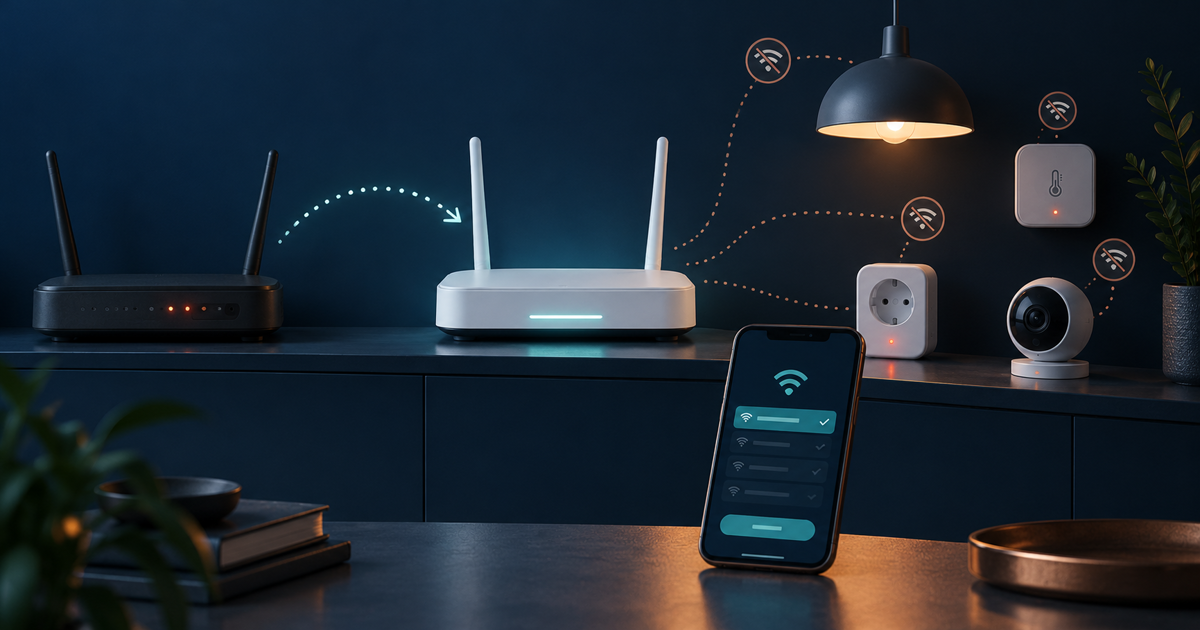
First check whether the Wi-Fi name, password or security mode changed. If the old credentials are still safe, giving the new router's 2.4 GHz network exactly the old name and password may restore many devices without re-pairing. Do not reset a hub, bridge or every device until you know which connection actually failed.
Updated 9 October 2026
Safe migration order
- Confirm that internet access works on a phone or computer through the new router. If nothing can get online, fix the router or ISP connection before troubleshooting smart devices.
- Define the scope: are all smart-home devices offline, only one brand, or a single device? Also check whether any bridge or hub is visible in its own app.
- Compare the old and new Wi-Fi: network name, password, 2.4 GHz support and security mode. Many small IoT devices use 2.4 GHz. Do not disable encryption or choose a weak password merely for compatibility.
- If the old Wi-Fi credentials were not compromised, try the exact old name and password on the new router's 2.4 GHz network. Restart the router and affected devices in a controlled order. This is not universal, but it may avoid setting up every device again.
- If credentials must change, use Change Wi-Fi or Network in the manufacturer's app first. Keep the phone on the same local network, allow Bluetooth and local-network access when requested, and follow the exact model instructions.
- If devices use an Ethernet-connected bridge, such as a standard Hue Bridge, check its cable, router LAN port and indicator lights. The lights behind that bridge normally do not move to Wi-Fi individually.
- Use a factory reset only as the last step and with model-specific instructions. First record rooms, automations, device names and access codes because a reset may erase settings or require every device to be added again.
Why did the devices disappear?
A router change usually breaks a stored Wi-Fi credential, 2.4 GHz compatibility, the local path between phone and device, or a hub's network link. The JVS Tuki rule: first establish whether the product is a direct Wi-Fi device or sits behind a bridge; then choose the repair.
What not to do
- Do not reset every device at once. You will lose the evidence of what helped and may erase automations.
- Do not post the Wi-Fi name, password, QR code, device serial number or camera view in a discussion.
- Do not disable security or keep an old weak password. If the credentials may have leaked, reconfigure devices securely.
- Do not open a fixed relay, thermostat or mains installation yourself. Isolate power safely and use a qualified electrician.
When to stop
Stop if a device becomes hot, smells, sparks, has liquid damage or forms part of a fixed electrical installation. Get help if cameras, locks or alarms remain in an uncertain state, or if you cannot confirm whether the old network credentials are safe.
What changed after replacing the router?
Your answer is neither sent nor stored.
When is help worthwhile?
JVS Tuki can separate a router, 2.4 GHz network, hub and device fault and plan the move without unnecessarily losing working automations.
Ask about smart-home network diagnostics