
Printer prints, but the scanner is not found?
Try starting a scan on the computer, not only with the printer button. Working printing does not prove that scanning is installed. Compare standalone copying, scanning from the computer and the device button before reinstalling anything.
Updated 23 October 2026
Safe checking order
- Use an ordinary test sheet without personal information. If the device can copy, make one copy using its own panel without the computer. A successful copy is a useful clue, not proof that every scanner function is healthy. If copying fails too, start with the device's displayed error.
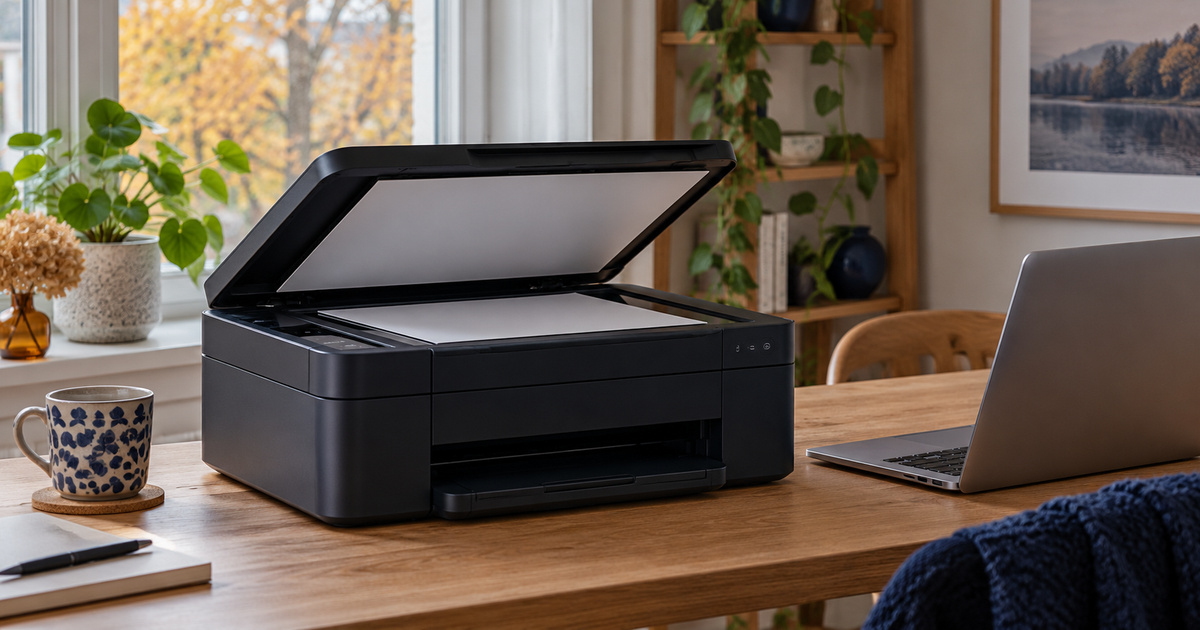
- Open the scanning app you already use, select the correct device and try one page from the glass. Choose Flatbed rather than an empty document feeder. If this works but the printer's Scan to computer button does not, the issue is narrower: the button destination or the manufacturer's background software may need setup.
- In Windows 11, open Settings → Bluetooth & devices → Printers & scanners. Select the multifunction device and look for scanner settings. A print queue alone is not enough. If the scanner is missing, try Add device. Labels vary with Windows language and version.
- For USB, try a direct computer port without a dock. For a network device, check that the computer and printer are on the same home network, not a separate guest network. Do not weaken router security. Save your work and restart the computer and printer normally, provided neither is installing firmware or other updates.
- If the current app cannot find the device, compare with Microsoft's Windows Scan from Microsoft Store or the manufacturer's scanning app for the model. Check the publisher: a similarly named paid app is not the same product. If a driver is missing, obtain the scanner package for the exact model and Windows version from the manufacturer's support site. Do not remove a working print setup just in case.
- Save the test scan to a local folder you choose and open the file. If scanning finishes but the image seems missing, check the save folder; Windows Scan defaults to Pictures/Scans. Record three results: standalone copy, computer-started scan and device button. These make a support request much more precise.
Symptoms and possible causes
The JVS Tuki comparison separates device copying from two computer workflows. A scan started on the computer is not the same as sending a scan with the printer's button. Failure of the button alone does not necessarily mean a broken scanner. If every app lacks the scanner, investigate the connection and model-specific scanner software. A blank image can instead come from the wrong source or paper orientation.
What not to do
- Do not disable the firewall or antivirus, or enable old SMB1 based on a forum workaround.
- Do not download drivers from advertisements or unknown driver-updater tools. Do not buy scanning software before identifying what is needed.
- Do not test with a passport, bank document or health record. Do not upload documents to a cloud service merely to troubleshoot.
When to stop
Stop if there is unusual mechanical noise, a paper jam or repeated failure of standalone copying. Do not open the casing. If the correct scanner software and a direct connection do not help, collect the model, Windows version and exact error for manufacturer support. On a managed work computer, ask the administrator to review settings.
Where does scanning fail?
Your answer is neither sent nor stored.
When is help worthwhile?
JVS Tuki can help check the connection, appropriate scanner software and save location. The aim is to make the existing device useful, not sell an unnecessary replacement.
Ask for scanning help