
Printout too small or edges cut off? Check the size before printing again
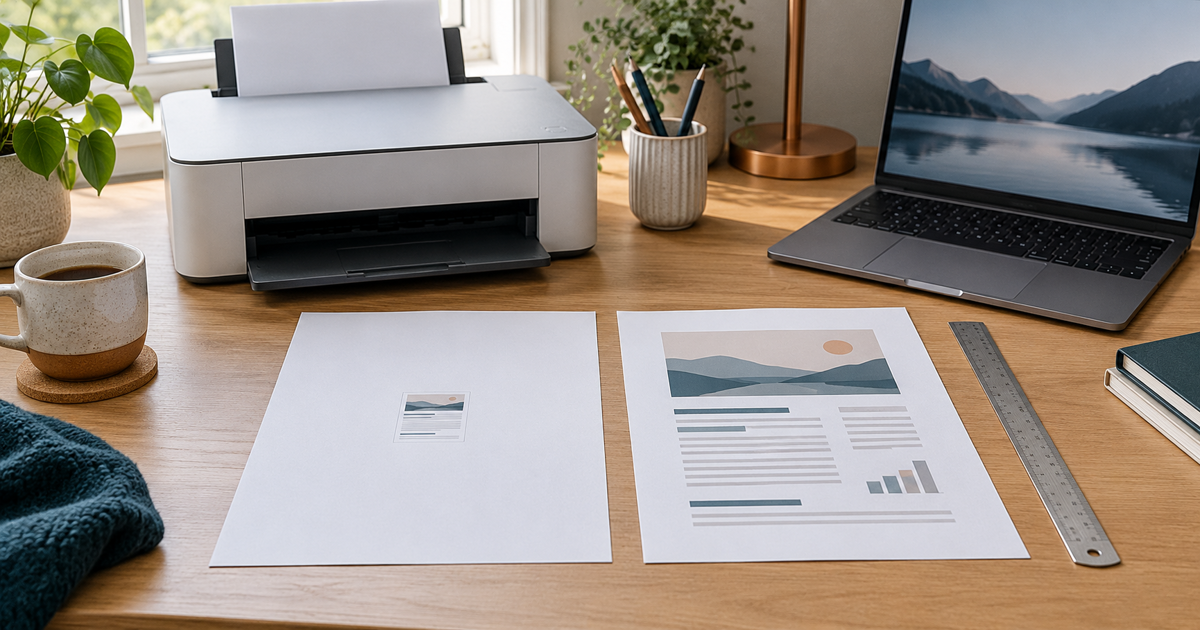
Do not replace the printer first. Check paper size, pages per sheet and scaling in print preview. Fitting an ordinary document can make the whole page readable. A sewing pattern or other dimension-critical template needs a different approach: follow its printing instructions and measure one test print.
Updated 26 October 2026
Safe checking order
- Decide what success means: reading the whole document on a sheet, or preserving exact dimensions? Note the current settings so you can restore them. Use an ordinary test document without personal information. Start with one page and one copy, not the full job.
- Compare the document page size, the paper selected in the print dialog and the sheet actually loaded. If you use A4 paper, select A4 in the settings too; do not leave Letter selected simply because it was the default. Check portrait versus landscape and the chosen printer. Menu names depend on the application and printer model.
- Several tiny pages on one sheet call for a pages-per-sheet check. Start with one page per sheet and remove an unintended booklet or multiple-page layout. A small but complete page is a different symptom from missing text along an edge. Recheck the preview after each change.
- For an ordinary PDF you simply need to read, try fitting to the printable area. In Acrobat, Fit can shrink or enlarge; Shrink oversized pages only reduces oversized pages. Actual size does not scale, so content that does not fit may be cropped. These choices are not interchangeable. Choose for your purpose and check the full page in preview.
- For a dimension-critical pattern or template, follow the author’s instructions. If they require actual size or 100%, do not silently substitute Fit. Print only the calibration page and measure its test square with a ruler. If the measurement is wrong or content is missing, stop and check the specified paper size and printer instructions. Do not guess a correction percentage.
- If only one website is affected, compare another ordinary document on the same printer. In Edge, Ctrl+P opens printing and More settings contains paper and layout choices. A website’s own printable version may help. If preview looks right but paper output does not, also inspect paper and scaling in Printer properties. Change one thing at a time and keep the successful test page as a reference.
Symptoms and possible causes
JVS Tuki’s triage: several small pages on one sheet suggest checking multi-page layout; one small page calls for checking scaling and document size; a missing edge calls for checking paper, orientation and printable area. One failing file alone does not establish a printer fault. These are checks to distinguish possible causes, not a remote diagnosis.
What not to do
- Do not reprint the entire document before checking one page.
- Screen zoom is not a reliable way to set physical print size. Do not edit the original document just to compensate for a print setting.
- Do not assume borderless printing works with every printer or paper. Keep private documents out of unknown repair sites and avoid random driver bundles.
When to stop
Stop if paper jams, the device reports an error or a precision template fails its measurement check. Follow the manufacturer’s instructions for feeding or hardware errors. If two ordinary documents print incorrectly despite correct preview and paper settings, record the printer model, application and comparisons for support. Ask the administrator about locked settings on a managed device.
What does the incorrect print look like?
Your answer is neither sent nor stored.
When is help worthwhile?
JVS Tuki can help compare application and printer settings using one safe test page. We establish what is happening before suggesting another device or application.
Ask for printing help