
Color printer only prints black and white? Check this first
Check the selected printer and this job’s color setting before buying ink. Choose Color if the device supports it, then try one small color page. If color is missing from the printer’s own color test too, a computer setting alone does not explain everything.
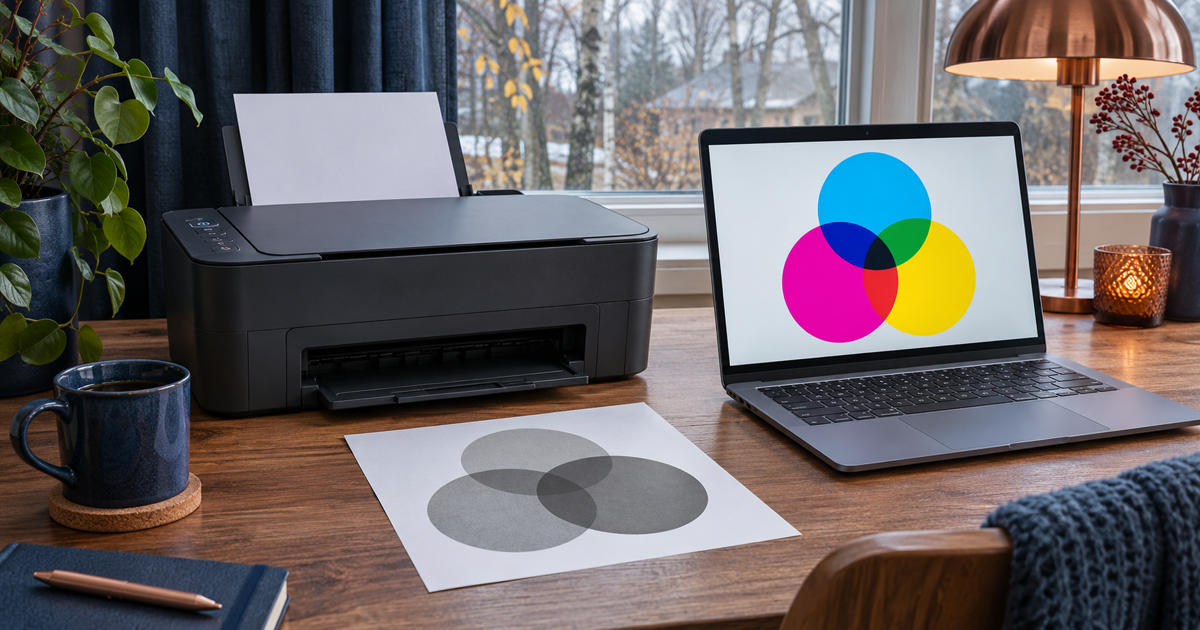
Updated 5 November 2026
Safe checking order
- Confirm from the model specifications that the printer can print in color. A color scanner or screen does not mean color printing. Check the device name in the print dialog: an old queue or a different connection to the same printer may offer different options. Do not delete queues yet.
- Open a small local picture or document that definitely contains color. Choose Print and look for Color. Also check Printer Properties or Printing Preferences: Grayscale and Black & White remove color. In Word, use File > Print > Printer Properties. Labels vary with the app, model and driver.
- Change only this job’s color option first, not the default for every future job. Print one page, one copy. Note the original setting so you can restore your economical black-and-white preference later. Check the final print dialog even if a website first opens a PDF preview.
- If the result is still gray, try the same file in another trusted app already installed, using the same printer. If only one app fails, check its print options. Do not upload a private document to an online testing service.
- If the printer offers its own color quality test or color copying, follow its model guide and do one test. An ordinary text status page may not contain color. A good standalone color test but a gray computer print narrows the issue to the print path; it does not prove a driver fault.
- If color is missing from the standalone color test too, read the device’s ink or toner messages and model guide. If no Color option appears, note the exact model, app and selected queue, then consult the manufacturer’s official support. Do not install a random driver bundle or replace cartridges based on a guess.
Symptoms and possible causes
Comparison checklist: one gray file → check the original content; one app only → its print options; all computer prints gray but the printer’s own color test works → check the queue and settings; its own color test is incomplete too → inspect device messages. Missing color bands or a wrong tint are not the same symptom as a clean grayscale print. This narrows the problem; it is not a diagnosis.
What not to do
- Do not start repeated cleaning cycles or print dozens of test sheets. Follow the model instructions.
- Do not reset the printer, delete every queue or buy color supplies just in case.
- Do not assume Grayscale always means black ink only: consumption depends on the device and mode.
When to stop
Stop if the device reports a service, leak or cartridge error, or the comparisons do not narrow the cause. Do not bypass organization-managed color restrictions. Ask for help with the model, app and one test result, without sharing private documents.
Where is color missing?
Your answer is neither sent nor stored.
When is help worthwhile?
JVS Tuki can help compare app, print queue and device settings before unnecessary purchases. Our website also offers other articles, solutions, first help and a light self-check.
Ask for printer help