
Printer keeps printing old jobs? Stop the unwanted repeats
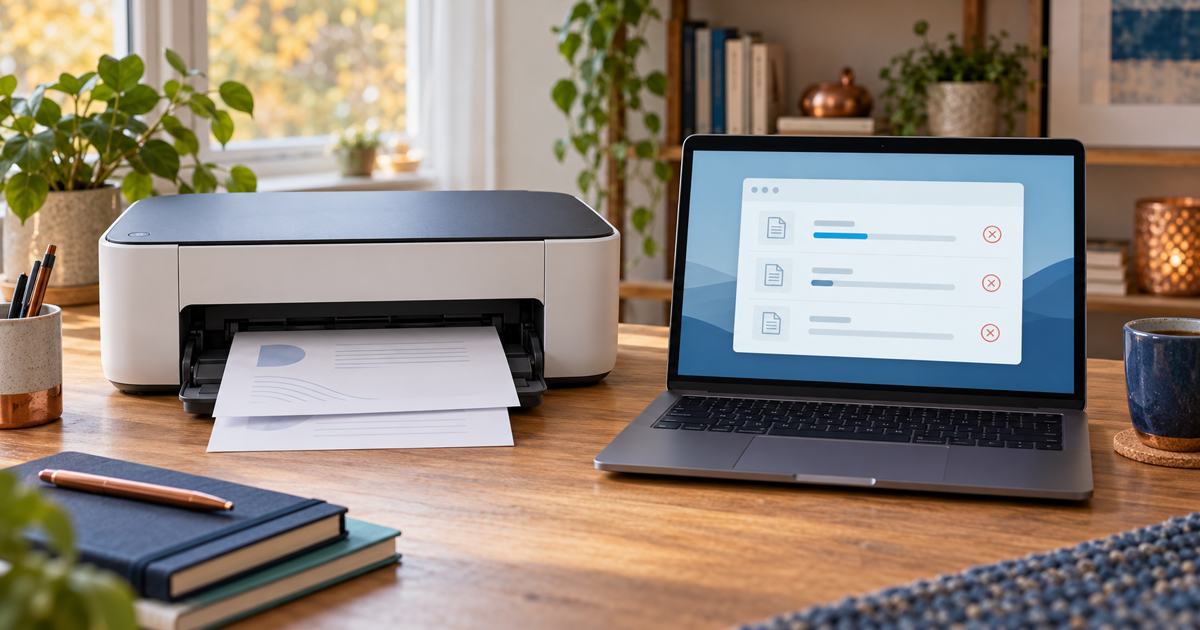
Do not press Print again. Cancel the unwanted job on the printer and on the device that sent it. Check the queue before sending one new test page: switching the printer off does not prove that waiting jobs have been removed.
Updated 19 October 2026
Safe checking order
- Stop sending new jobs and ask others at home to wait. If printing is underway, use the printer Cancel function as described in its manual. Do not pull out moving paper. A page already transferred to the printer may still finish.
- On the sending Windows 11 PC, open Settings → Bluetooth & devices → Printers & scanners → your printer → Open print queue. Check the printer name, job names and times. Cancel your unwanted jobs, not other people’s work in a shared queue. Keep the original document for any later reprint.
- If a job stays in Deleting, close the print dialog and wait briefly. On your own home PC, you can open Windows + R → services.msc, find Print Spooler and choose Restart. This affects printing on that PC more broadly. If permission is denied or it is a work PC, ask the administrator.
- Check the queue again. An empty queue on one PC says nothing about other devices: if old pages keep coming, check other computers or phones that sent jobs and the printer job screen, if available. Do not factory-reset the printer just because your own queue is empty.
- JVS Tuki check: once unwanted jobs are cancelled and the printer is ready, send one short test page without personal information, once. Watch for one job to appear and clear after completion. If it succeeds, send the required document once. If the fault immediately returns, stop adding copies.
Symptoms and possible causes
Several jobs with the same name may be separate submissions. A job stuck in Deleting may point to a print service or connection problem. An empty local queue alone does not prove that the printer or another device has no waiting work. For Offline status rather than repeated old jobs, use the connection checklist.
What not to do
- Do not repeatedly click Print while the first job is stuck.
- Do not delete system folders, drivers or printer network settings during this first check. Avoid unknown repair utilities.
- Do not share an unredacted queue screenshot: document names and user details may be private.
When to stop
Stop if cancellation and one service restart do not help, or if you cannot identify the sender. Record the printer model, connection type, queue status and test result, not document contents. Ask the administrator to handle a full shared-queue reset. Smoke, a burning smell or liquid in the device is not a queue issue: stop using it safely and seek service advice.
What do you see in the queue?
Your answer is neither sent nor stored.
When is help worthwhile?
JVS Tuki can trace the device sending repeated jobs and check the queue and connection before an unnecessary printer replacement.
Ask about printing help