
Double-sided printing upside down: check the flip edge first
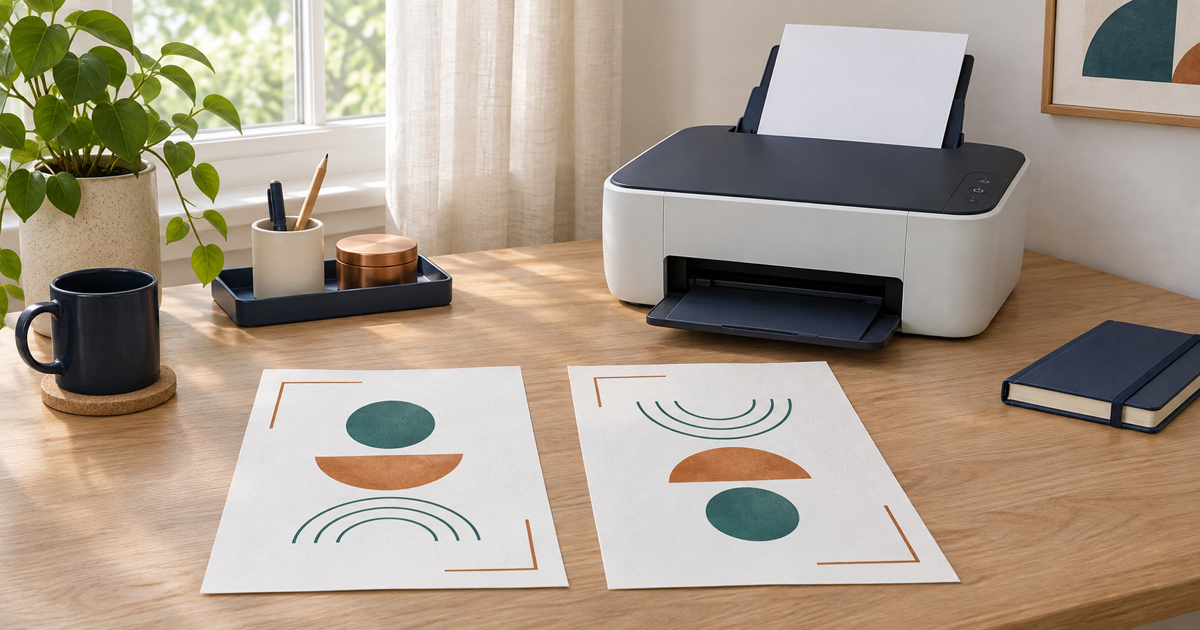
If the front is correct but the back is upside down, first check page orientation and the duplex flip edge. Portrait pages read like a book usually use the long edge. Test just two pages on one sheet before printing the whole document.
12 November 2026
Safe checking order
- Stop the large print job. Cancel your own queued job before starting another test. Leave the document unchanged. If size or margins are also wrong, see the print scaling guide.
- Choose two ordinary pages. Use pages with the same orientation and one copy. Check portrait or landscape in the preview. For this test use one page per side; turn off booklet and multiple-pages-per-sheet settings.
- Match the edge to how you turn the sheet. Portrait + turning left/right: long edge. Portrait + turning over the top: short edge. Landscape + turning left/right: short edge. Landscape + turning over the top: long edge. This is a geometric starting point; check the diagram in your own print dialog.
- Check this job's settings. Open printer properties or advanced settings from the app's print dialog. Look for two-sided printing, binding or long/short edge. Labels vary by app and model. Check saved presets; change only one setting at a time.
- Print the test and turn the sheet as you intend to read it. If the back is still wrong, change the flip edge and repeat the two-page test. If the choice has no effect, try a known two-page document in another already installed app. Do not upload private documents to an online service just to test printing.
- Separate manual refeeding from automatic duplex. If you are asked to put the paper back, follow your exact model's loading instructions and test one sheet. A universal 'printed side up' instruction will not work for every printer. Also check the manufacturer's guidance on paper suitable for duplex printing.
Symptoms and possible causes
When only the reverse is upside down, the flip edge or page orientation is a useful first check, not proof that the printer is broken. If only one file fails, inspect mixed page orientations and that app's print settings. If changing long/short edge does nothing or the option is missing, the app, preset or model's driver support may need investigation. Brother also describes generic-driver limitations for certain models; that does not mean all generic drivers or AirPrint are the wrong choice.
What not to do
- Do not reprint the whole document for every test.
- Do not rotate every second page in the original file to compensate for a print setting.
- Do not start by removing a working printer, installing random driver bundles or doing a factory reset.
- Do not use labels, specialty paper or damaged sheets for a duplex test without model-specific guidance.
When to stop
Stop if paper repeatedly jams, unusual noises occur or sheets are damaged. Do not force paper out or touch hot internal parts. If two controlled tests do not clarify the problem, note the model, app, page orientation and flip settings tried. Ask for help before changing drivers; single-sided printing is a temporary option for an urgent document.
Which describes your printout?
Your answer is neither sent nor stored.
When is help worthwhile?
JVS Tuki can help check how the app, printer and settings work together. Our website offers more articles, solutions, first help and a light self-check. You do not need to send a private document for an initial assessment.
Ask about print settings