
Phone charges, but photos will not transfer to Windows
Charging does not prove that a USB cable carries data. Unlock the phone, use a data-capable cable and check Android's USB mode or the iPhone trust prompt. Copy a few photos first and open them on the computer. Keep the originals for now.
Updated 10 October 2026
Safe copying order
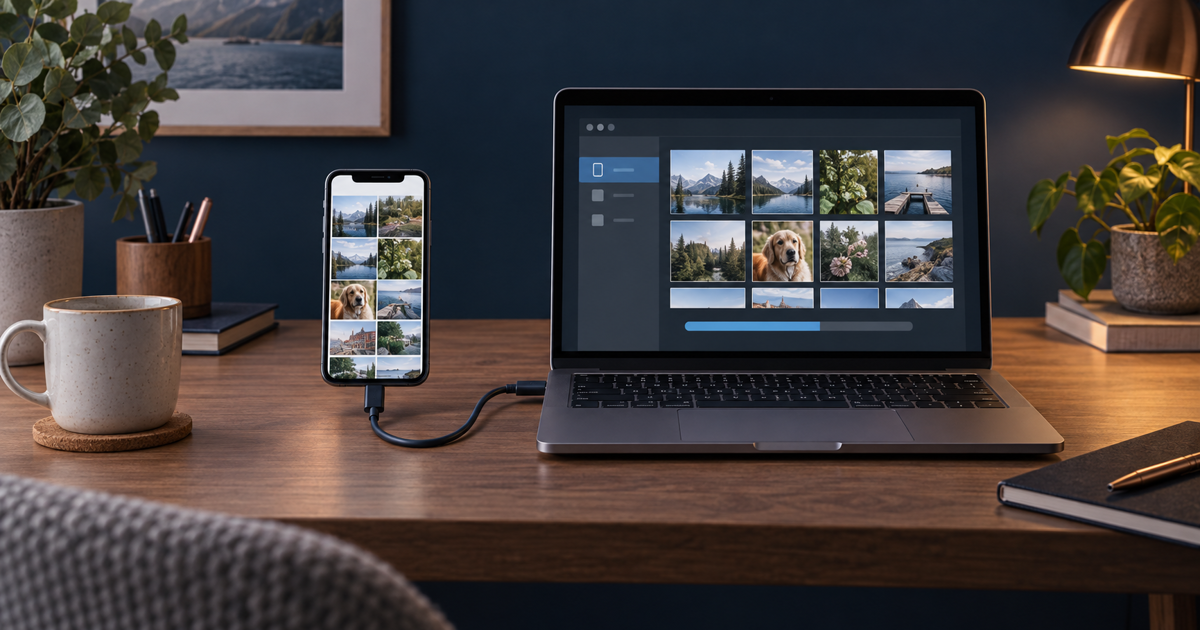
- Connect directly to your own trusted computer without a dock. Unlock the phone and check its notifications. Try a known data-capable cable and, if needed, another USB port. Power can work even when the data connection does not.
- On Android, open the USB charging notification and choose File Transfer; wording varies by manufacturer. Then find the phone in Windows File Explorer. Camera photos are often in DCIM. Ordinary photo transfer does not require enabling USB debugging.
- For iPhone, install Apple Devices from the Microsoft Store, unlock the phone and accept Trust This Computer only on a computer you trust. Import with Windows Photos. If iCloud Photos is enabled, download originals to the phone before USB import; check available storage first.
- In Windows Photos, choose Import and the connected device, or copy Android files in File Explorer. Start with 3–5 photos and one short video. Choose a destination folder you can find again and check the computer's free space.
- Open the copies on the computer; check video playback and file counts. If a file copies but will not open, investigate the file format separately: USB may no longer be the problem. Do not overwrite or convert your only original while experimenting.
- If the connection is still missing, restart the phone and computer. Try another trusted computer if available. Keep originals on the phone until copies are checked and important photos have a second backup.
Symptoms and possible causes
A phone that only charges points first to the cable, lock screen or USB mode. A visible phone with missing photos calls for checking whether the pictures are cloud-only. A transfer that always stops on a large video calls for a free-space check and a small test batch. The JVS Tuki rule: separate device detection, copying and opening the copy.
What not to do
- Do not factory-reset the phone or format storage to import photos.
- Avoid random driver bundles and remote access from an unknown helper.
- Do not trust a public computer or leave the phone unlocked afterwards.
When to stop
Disconnect if the connector is hot, wet or damaged. If the phone repeatedly shuts down or contains the only copy of your photos, stop repeated attempts and get help before resetting or repairing it. An employer's USB restrictions belong with its IT support.
Where does the transfer stop?
Your answer is neither sent nor stored.
When is help worthwhile?
JVS Tuki can help separate cable, permission, cloud-photo and file-format issues and verify a backup before you erase an old phone.
Ask about photo transfer