
PDF opens in the wrong app on Windows: a file or a web link?
First open a trusted PDF from File Explorer, not an email preview or a website link. If the local file opens in the wrong app, check the .pdf default. If only web links open in a browser, investigate that separately. Changing how a file opens does not require converting it or buying another app.
Updated 25 October 2026
Safe checking order
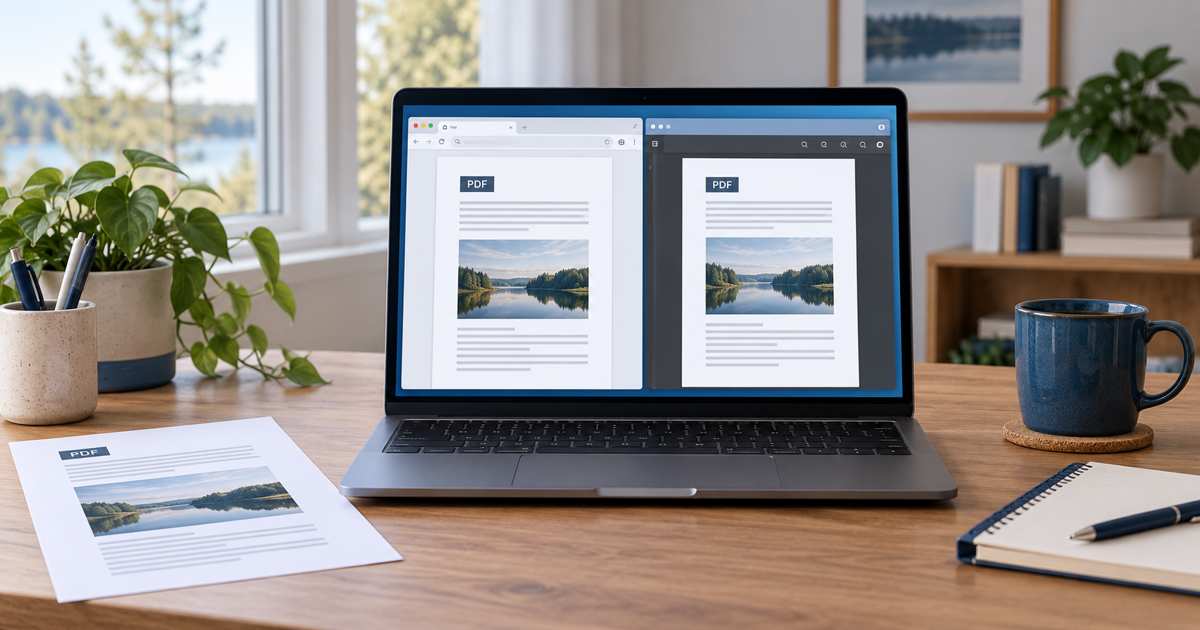
- Choose an ordinary trusted test file with no personal information. Open its folder in File Explorer and double-click the file. Note the app that opens. Compare this with a website PDF link or an email preview. Different opening routes can show the same document in different viewers.
- Check that it really is a PDF. In Windows 11 File Explorer, View > Show > File name extensions reveals the ending. A browser icon does not mean your PDF has become a web page. Do not rename an .html or other file to .pdf: renaming does not convert its contents.
- Try your preferred already-installed reader using the file’s Open with menu. This separates an app-choice problem from a file problem. If you use Acrobat or Reader, Adobe’s permanent-change route is Properties > Change, select the app, Set default, then OK. Choose an application you recognise.
- Alternatively, open Windows Settings > Apps > Default apps, search for .pdf and choose your preferred installed app. Change only this file type, not every default as a precaution. Close the test document and reopen the same file from its folder. You can change the selection back later.
- If opening from a folder works but a website link still appears in a browser tab, do not assume the Windows setting failed. Edge, for example, can display PDFs in its own viewer. Save a trusted PDF using the viewer’s download control and open the saved file from its folder. Browser PDF settings and organisational management can affect web links separately. This guide does not recommend changing an organisation’s policies.
- Finish with two trusted PDFs. If only one fails in the same app, ask the sender for a fresh copy instead of repeatedly changing defaults. If the choice changes back later, record when, which apps are involved and any management notice. An update happening nearby in time does not prove it caused the problem.
Symptoms and possible causes
The JVS Tuki check compares three things: where you open the document, its real file type and whether a second file works. The wrong app for all local PDFs points towards the default choice; different behaviour only for web links may involve the browser; a failure with just one file may involve that file. These are troubleshooting clues, not a definite diagnosis.
What not to do
- Do not delete registry keys or remove your browser to address this symptom.
- Do not turn off Protected Mode or other security controls just to open a PDF.
- Do not upload bills, personal information or private documents to an unknown converter. Do not install software from a random download advertisement.
When to stop
If the file’s origin is unclear or security warns you, do not bypass the warning. Verify the sender through a known channel. If a setting is locked or the device is managed, ask its administrator. If the intended app cannot open two trusted test files, investigate its error message before installing more software. Support does not need your private document’s contents for the first checks.
Where does the wrong app appear?
Your answer is neither sent nor stored.
When is help worthwhile?
JVS Tuki can help check file-opening preferences and separate browser settings from Windows defaults. We start with an ordinary test file, without unnecessary software purchases.
Ask for help with computer settings