
Inkjet printer prints blank pages? Run a nozzle test before cleaning again
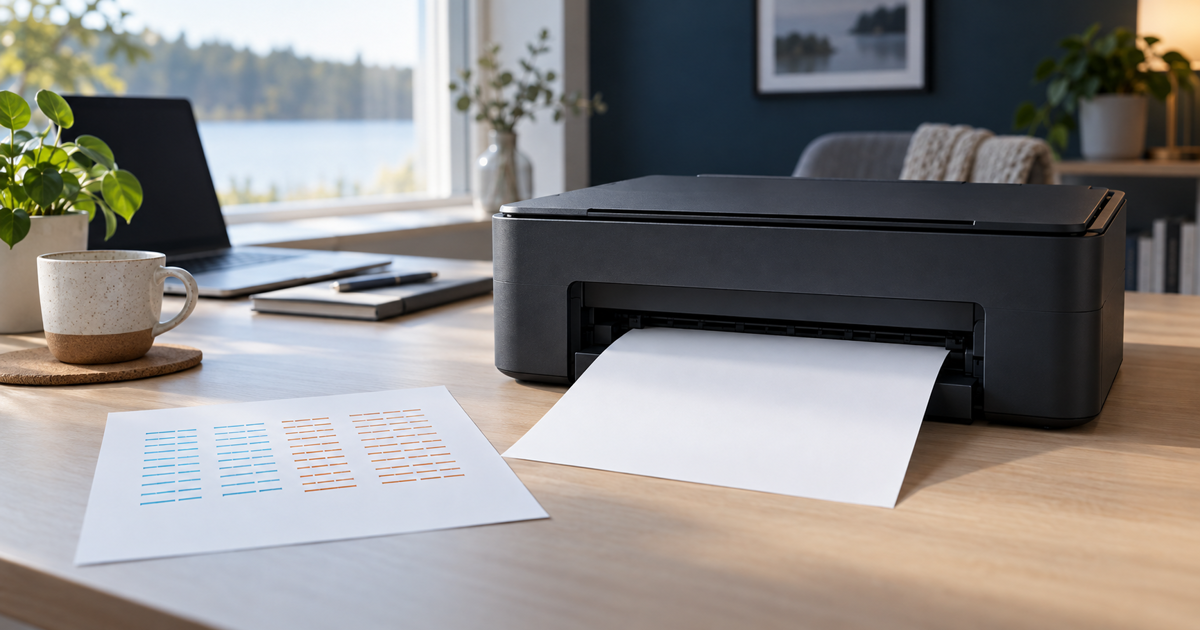
Do not start with deep cleaning or dismantling the printer. First print a nozzle check or print-quality report from the printer's own Tools or Maintenance menu. If that page is also blank, focus on ink, cartridge, nozzles or printhead. If the internal test is good but a document is blank, check the file, print settings and driver.
Updated 9 September 2026
Safe order of action
- First confirm that this is an inkjet printer. This guide does not apply to laser or thermal printers. Check any error message and the estimated ink level, but remember that a level indicator does not prove ink is reaching the nozzles.
- Print one internal nozzle check, print-quality report or test page directly from the printer's Tools or Maintenance menu. Use plain white A4 paper and let the test finish.
- If the internal test prints correctly, the print mechanism can form an image. Try a simple PDF or text page from another app; check the selected printer, paper size, page range and that the print colour is not white. Update or reinstall the manufacturer's driver only after this comparison.
- If one colour is missing or the pattern has gaps, check that cartridge or tank level and installation. With a new cartridge, use the model instructions to confirm that protective tape and transport pieces are removed and the cartridge is locked in place.
- Run one standard printhead or cartridge cleaning from the printer's own utility, then print another nozzle check. Continue only as many times as the model manual allows. Cleaning consumes ink, so repeated cycles are not a harmless experiment.
- If two or three standard cleanings do not help, stop and check the manual for that exact model. A manufacturer may require a 30-minute or 12-hour wait. Power Cleaning or Ink Flushing uses much more ink and belongs only in a model-specific next step.
What can cause a blank page?
A blank page can come from an empty or incorrectly seated cartridge, protective tape left in place, dried or clogged nozzles, air in an ink system, a failed printhead, or a software setting. The JVS Tuki rule is simple: a blank internal printer test points toward the printer's ink path; a good internal test moves attention to the file, app and driver.
What not to do
- Do not run Deep Cleaning, Power Cleaning or Ink Flushing repeatedly. These operations can use a large amount of ink and fill the maintenance box.
- Do not inject water, alcohol or cleaning fluid into the printhead or ink tubes. Home flushing methods can damage seals, electronics and the ink system.
- Do not remove a printhead or open covers unless the official manual for that exact model explicitly tells you to do so. Do not touch electrical contacts or the nozzle surface.
- Do not immediately buy a full set of cartridges. The nozzle pattern shows whether one colour or all printing is missing, and the internal test separates software from printer-side faults.
When to stop
Stop if ink leaks, the printer makes an abnormal mechanical noise, reports an electrical or printhead fault, becomes hot, smells burnt or produces smoke. Disconnect power safely for smoke or a burnt smell and arrange service. If the internal test remains blank after the allowed cleanings and waiting period, the next sensible step is a model-specific cartridge, printhead or ink-system test — not more random cleaning cycles.
What does the printer's own test page show?
Your answer is neither sent nor stored.
When is help worthwhile?
JVS Tuki can help print and interpret the test pattern, separate a driver fault from an ink-system fault, and assess whether a cartridge, printhead or the printer itself is worth servicing or replacing.
Ask about printer diagnostics