
Google Photos · Phone storage · Backup
Free up phone space with Google Photos — check the backup first
If you want to keep photos in your Google Photos library but remove local copies from your phone, do not start with the normal Delete action. First check backup status, the Google account in use and a separate copy of anything irreplaceable. Only then use Photos’ Free up space on this device feature.
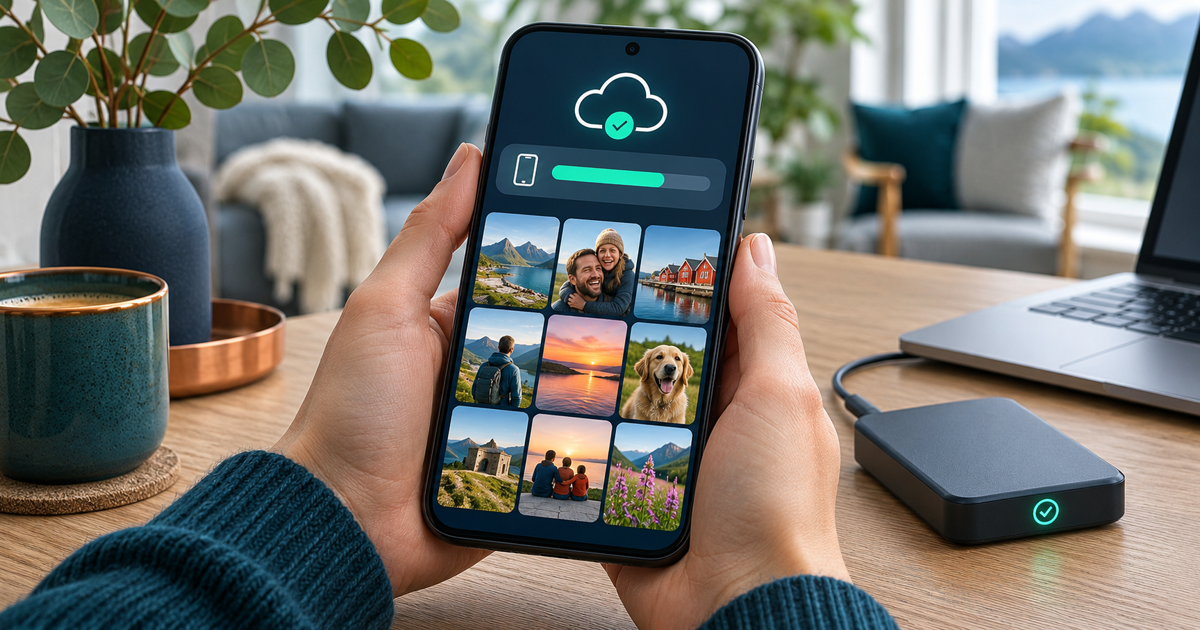
Updated 19 November 2026
Short answer
- Check the Photos backup status and confirm that important items are marked as backed up.
- Open photos.google.com with the same Google Account and make sure the photos are actually there.
- To remove only local phone copies, use Free up space on this device. It removes local copies that have already been backed up.
- Do not use the normal Move to trash action as a substitute: deleting in Google Photos can also remove the item from the cloud library and synced devices.
Which storage is full?
Phone storage and Google Account cloud storage are separate. First identify which one is preventing the action you want to take.
| The phone cannot take photos or install an update | Check device storage. Removing local photo copies may help if they have already been backed up. |
|---|---|
| Backup is paused or says storage is full | Your Google Account storage may be full. Freeing phone storage does not itself add cloud storage. |
| A photo appears in the app but not in a browser | Check the Google Account and the item's backup status; an in-app thumbnail alone does not prove it is in the cloud. |
| A photo disappeared from the phone's Gallery/Photos app | After Free up space, missing local copies are expected. Check Google Photos or photos.google.com while online and signed into the right account. |
| The photo is missing from Google Photos too | You may have used normal Delete or be viewing another account. Do not empty the trash; check Google Photos Trash and the device's Recently Deleted folder now. |
A safe order of checks
- First decide what you need to free: phone storage or Google Account cloud storage. They are different measures; freeing one does not automatically free the other.
- Open Google Photos → profile picture → Backup. Check that backup is on, the intended Google Account is selected and the status says Backup complete. Menu wording can vary by app version.
- Check important items individually: their details or status should say they are backed up. Also check photos.google.com in a browser with the same account. If an item or folder is missing, do not free space yet.
- For irreplaceable photos, make a separate copy to a computer or external drive before cleanup, then open a few files from that copy to make sure it works.
- To free device storage, choose Free up space on this device from the Google Photos profile menu and review the amount shown. On Android, this removes local copies already backed up; photos and videos younger than 30 days may remain on the device.
- On iPhone or iPad, Photos may move local items to Recently Deleted. First verify the copies in Google Photos. Emptying Recently Deleted can release local space, but do not do it until you are certain the copy you want is elsewhere.
- If you accidentally used normal Delete, stop cleanup. Check Google Photos Trash and the device's Recently Deleted/Trash folders now; recovery views and retention depend on how and where the item was deleted.
Free up device space or delete a photo?
| Free up space on this device | Removes a local copy that is already backed up; the cloud-library item remains viewable in Photos and on the web. |
|---|---|
| Delete / move to trash in Photos | Removes the selected item from the library and can also remove it from synced devices. Use only when you intend to delete the photo itself. |
| Delete from device | Removes the local copy from one device. Still check the item and its backup status before confirming. |
| Google Account storage management | Review cloud storage separately. Do not confuse deleting from the cloud with freeing phone storage. |
What not to do
- Do not select photos in bulk and tap the trash icon if your goal is only to free phone storage.
- Do not rely on an app thumbnail alone: check backup status and the same Google Account in a browser.
- Do not empty Google Photos Trash or iPhone Recently Deleted until you know what is inside and have verified the copy you want elsewhere.
- Do not clear app data, sign out or factory-reset as a troubleshooting test if the only copy may be on the device.
When should you stop?
If an important item is missing both from the correct cloud account and the phone, do not delete more, clear app data or reset anything. If you already deleted items, check the trash folders now and do not empty them. If backup status is unclear or you cannot access the Google Account, make a separate device copy first or ask for help.
Quick self-check
Quick self-check
Which option best matches your situation? Your choice stays in this browser; it is not sent or stored.
If copies or accounts are getting confusing
JVS Tuki can help check device storage, backup status and separate copies before cleanup. The site also has more articles and solutions, first help and a light self-check.
Official sources and problem signals
- Google Photos Help: Free up space on your Android device
- Google Photos Help: Free up space on iPhone or iPad
- Google Photos Help: Check your backup
- Google Photos Help: Delete photos and videos
- Public discussion signal: confusion after using Free up space
- Public discussion signal: users asking whether Free up space is safe