
Browser video has no sound, but other apps work? Check these settings first
Keep the volume low to start. Compare two familiar videos on different sites and one other app through the same speakers. If only the browser is silent, check the player, tab or site mute setting, and the Windows app mixer before changing drivers.
Updated 28 October 2026
Safe checking order
- Make one controlled comparison. Play a familiar video that you know contains sound on another trusted site. Then try a familiar audio file in another app through the same listening device. Do not change headphones, browsers and settings together: you would lose track of what helped. A single video may also be intentionally silent.
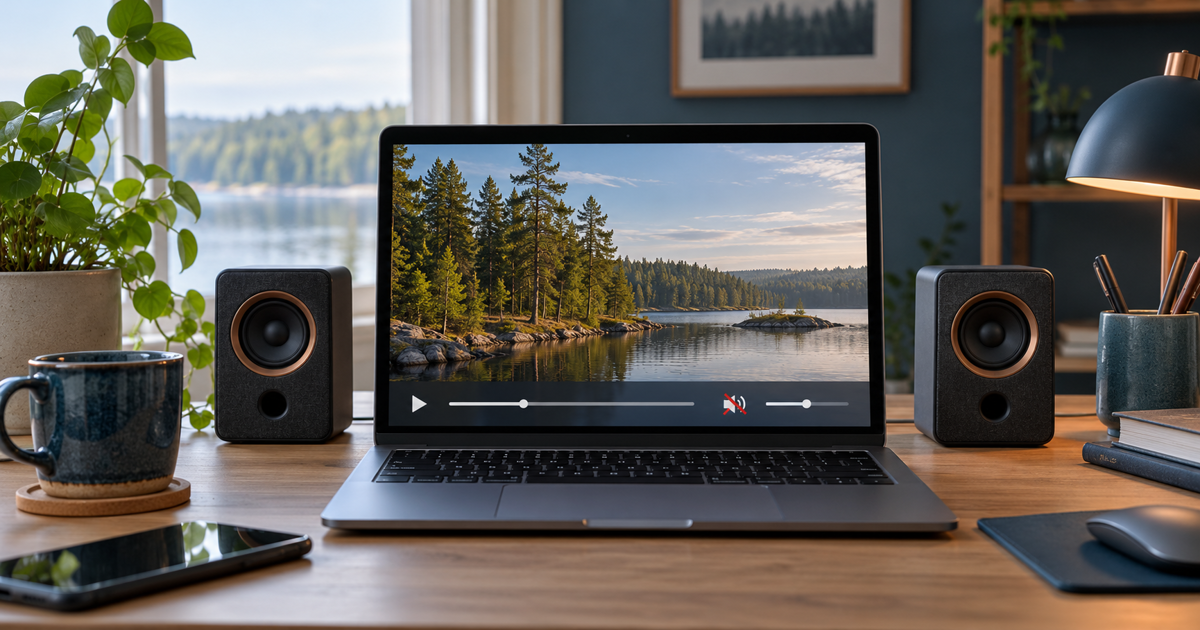
- Check the player inside the video. Start playback yourself, inspect its mute control and raise its volume only slightly. Keep Windows and speaker volume moderate so returning audio does not surprise you. If the video stalls or never loads, this may not be a sound-only problem.
- Check the tab and site. Look for the tab sound icon and an unmute option in its menu. In Edge, Ctrl+M toggles mute on the current tab: use it once and test, not repeatedly without checking. In Chrome, Settings → Privacy and security → Site settings → Additional content settings → Sound contains sound controls. Check whether the affected site is blocked; leave unrelated permissions unchanged.
- In Windows 11, open Settings → System → Sound → Volume mixer. Check the browser volume, mute state and output device. An app can use a different output from the system default. Test while the video plays and select the speaker or headphones you intended. Labels vary with language and version.
- If only one site is silent, compare another video there and, if necessary, the same public video in another already installed browser. This narrows the scope; it does not prove a site or browser fault. If every site is silent in one browser, save unfinished forms and close that browser normally. Reopen it and repeat the same test. Do not start by clearing cookies or resetting the whole profile.
- Record the result: which video or site, which browser, which listening device, and whether another app works on that same device. If audio returns, retest the original video at a moderate level. If it does not, this comparison is more useful for support than many simultaneous changes. If other apps are silent too, move to checking the overall audio device and connections.
Symptoms and possible causes
JVS Tuki’s comparison checklist: one silent video → content and player; one silent site → site mute; every browser site silent while another app works → app mixer and output; every app silent → broader device or connection checks. This selects a next step, not a remote hardware diagnosis.
What not to do
- Do not turn every volume control to maximum. Sound may return suddenly.
- Do not install random codec packs or driver-fixer tools at a video page’s request. Do not disable browser protection.
- Do not delete the browser profile, passwords or cookies before simple comparisons. Checking playback mute and output does not require microphone permission.
When to stop
Stop if sound becomes unexpectedly loud or distorted. Do not continue on a page that demands unknown software or disabled protection. Ask the administrator about locked settings on a managed work or school computer. If familiar videos on two sites stay silent despite apparently correct mixer settings, keep your comparison notes and ask for help before a broad reset.
Where is the sound missing?
Your answer is neither sent nor stored.
When is help worthwhile?
JVS Tuki can help separate player, browser and Windows settings calmly. This symptom alone is not a reason to replace speakers or buy software.
Ask for browser audio help