
Browser says your device has a virus — do not call the number
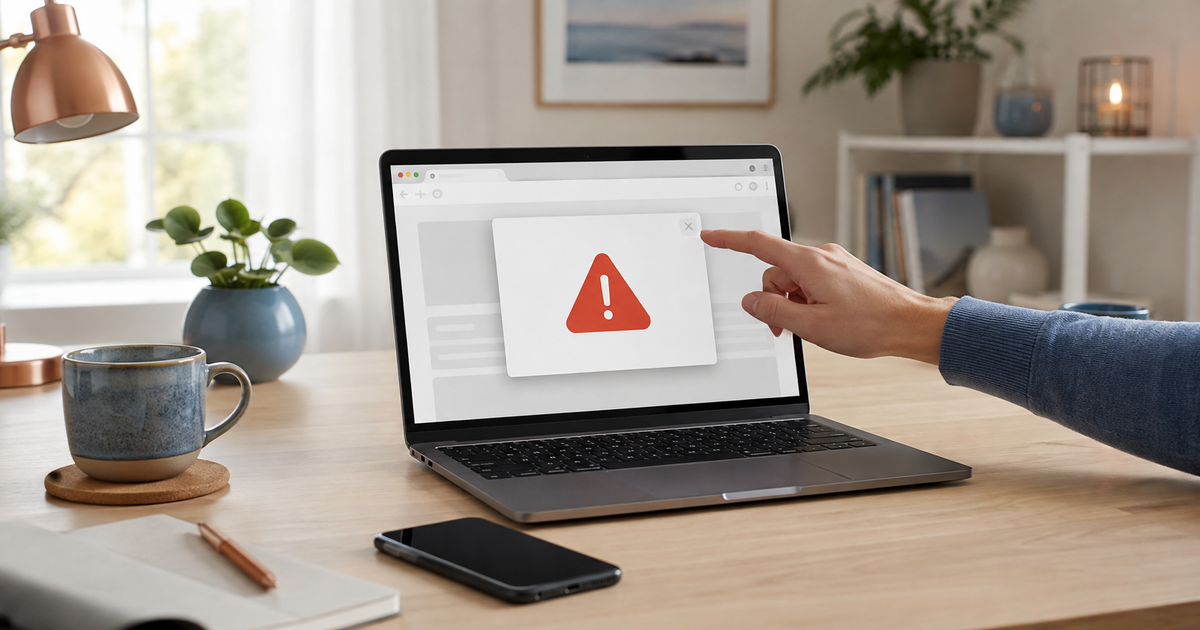
Close the tab or browser. Do not press buttons in the warning, call its number, install a cleaner or grant remote access. A website alert alone does not prove that the device is infected. If alerts return on the desktop, remove the suspicious site's notification permission in the browser settings.
Updated 5 September 2026
Safe check, step by step
- Close the suspicious tab. If the window will not respond, close the browser with Alt+F4 on Windows or through Option–Command–Esc on a Mac.
- Open the browser again without restoring the suspicious tab. Do not use the warning's own Close, Scan or Remove button.
- Open browser settings yourself. Check Site settings / Notifications and block or remove sites you do not recognize.
- Review browser downloads and extensions and recently installed device apps. Remove only an item whose origin you can identify as suspicious.
- Update the browser and operating system. Run a Windows Security scan on Windows; on a Mac, install the latest macOS security updates.
- If you installed software, granted remote access, entered a password or paid, disconnect from the network and follow the urgent steps below.
Where can the warning come from?
The warning may be a normal web pop-up, a full-screen scam page or a browser notification for which permission was granted earlier. A notification at the edge of the desktop can therefore come from the browser even when the scam page is no longer open. Open a genuine system or security warning from the operating system's own security app — never through an unknown site's number or link.
What not to do
- Do not call the number in the warning or answer a 'support agent' who calls back.
- Do not install antivirus, a cleaner or remote-control software suggested by the warning.
- Do not pay or give card, banking, password or verification-code details.
- Do not reset the whole computer or delete system files before you know what happened.
When to stop self-testing
Stop self-testing immediately if someone obtained remote access, saw banking or identity data, requested payment, disabled security or files became locked. Disconnect the device from the network, end the remote session, contact your bank if payment details were exposed and change important passwords from a clean device. Keep receipts and event details, but never record or share passwords or verification codes.
What happened after the warning?
Your answer is neither sent nor stored.
When is help worthwhile?
JVS Tuki can identify the source, remove abusive browser permissions and unwanted software, and check the device and account security steps without unnecessary purchases.
Ask for a security check